
The Insurance Tab in Vantaca is designed to store, track, and manage all association insurance policy details in one centralized location. Keeping this information accurate ensures that Community Managers and Assistant Community Managers can quickly access up-to-date insurance information when needed.
Important: Policy renewal/expiration dates in Vantaca control the system’s Insurance Expiration Alerts and renewal reminders. Always ensure these dates are accurate, and set alerts to notify you 75 days before the renewal date. This allows ample time for review, broker coordination, and policy renewal processing. For detailed instructions, please refer to this article: Insurance Expiration Alerts Action Item on handling Insurance Expiration Alerts and renewal reminders.
Accessing the Insurance Tab Test
-
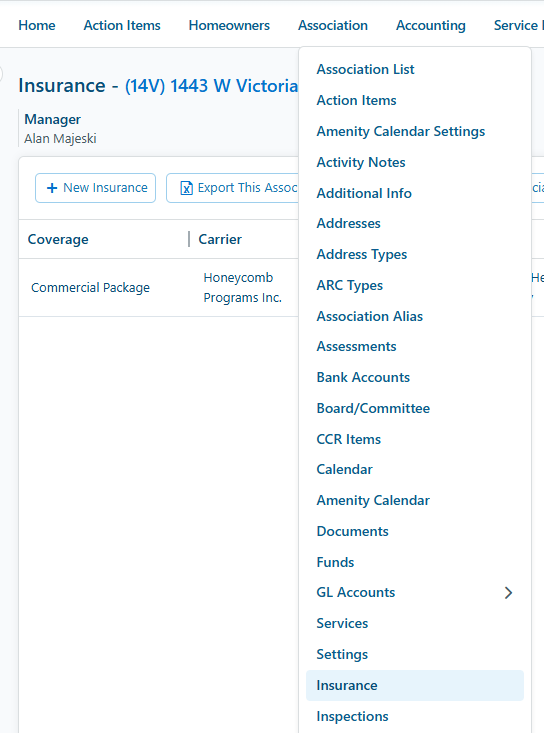
From the Main Menu, go to:
-
Association → Insurance.
-
-
Click on the desired association name.
-
Select the Insurance tab in the association profile.
Adding a New Insurance Policy
-
Click + New Insurance (or Add Insurance)
-
Complete the following fields:
| Field | Description | Requirement |
|---|---|---|
| Coverage Type Code | Designated code for the insurance type. |
Not Required |
| Coverage Type | Examples: Master Policy, D&O, Workers’ Compensation, Umbrella |
Required |
| Carrier Name | Enter the provider name. |
Required |
| Agent | Designated insurance agency/broker of the association. |
Required |
| Renewal Date | End date/expiration date of the policy. |
Required |
| Total Value | Dollar amount of coverage. |
Optional |
| Premium | Cost of the insurance policy. |
Required |
| Deductible | Deductible amount if applicable. |
Required |
| Deductible Description | Deductible details or explanation. |
Optional |
| Policy Description | Description of policy type (e.g., Master Policy, D&O, Workers’ Comp). |
Required |
| Policy Number | Policy number from the carrier. |
Required |
| Assigned Agent | Assigned representative handling the policy. |
Required |
| Agent Phone | Contact phone number for the agent. |
Required |
| Policy Note | Any internal notes about the policy. |
Optional |
| Follow Up Date | Date to follow up on policy matters. |
Not Required |
| Migration Date | Date policy was entered/migrated into Vantaca. |
Optional |
| Agent Fax | Fax number for the agent. |
Required |
| Agent Email | Email address for the agent. |
Required |
3. Click Save to finalize.
4. Upload the declarations page, endorsements, and any other relevant policy documents to the Vantaca Documents section and the association’s Google Drive folder.
Updating an Existing Policy
To update an existing policy, locate and click the policy from the list, then click Edit to make necessary changes such as dates, coverage amounts, deductibles, or uploaded documents. Once all updates are complete, click Save to finalize the changes.